How do I schedule a Bill Pay payment?
Consumer member
Once you have added your Billers, you can start paying bills. It’s simple and easy.
- Under Payments & Transfers click on Bill Pay.
- From the dashboard, select Pay Bills.
- Select the Biller. Type in the payment amount and send date, select the account the funds should be paid from and then click on more payment options.

4. Select the frequency. Make a one-time payment, weekly, monthly or choose another frequency. Select the duration for recurring payments. You can repeat the payment until you cancel it or set a specific number of payments to be made.
5. You may add a note for future reference, and if you prefer, you can even choose to receive an alert when the payment is delivered or select Alert Me with the number of days prior to the send date.
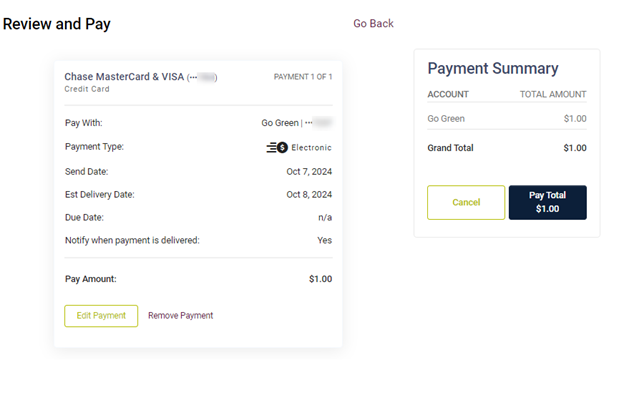
6. Scroll down to the bottom of the list and click Continue. Review the bill and make any necessary changes. Then click Pay.
Note: Please note that on the Mobile App, members will have to select Save Payment Details. Then, select Review Bill at the top. Once you confirm that it’s correct, you can select Pay Total.
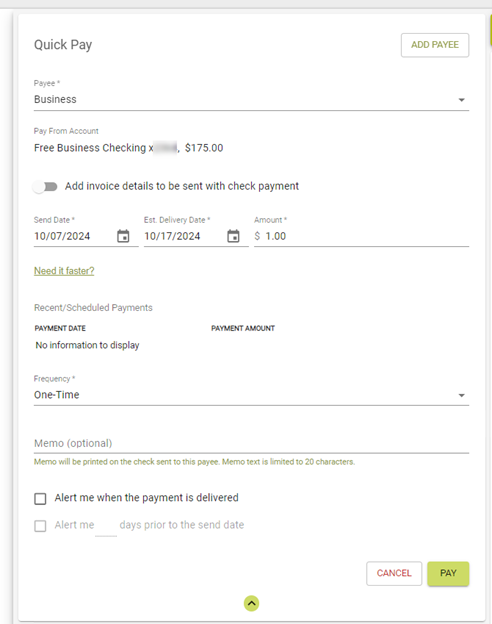
Business member
- Under Additional Services click on Bill Pay.
- Select a Tax ID.
- In the Quick Pay section select the payee you would like to pay.
- Select a Pay From Account.
- Add invoice details to be sent with check payment (optional).
- Select a Send Date or Delivery Date.
- Enter an Amount.
- Select a Frequency.
Note: If a recurring frequency is selected, you will have to select whether to repeat the transaction until it is canceled or enter a number for how many times you want to repeat payments.
9. Add a memo (optional).
10. Using the checkboxes select Alerts you would like for the payment.
11. Click Pay.