How do I cancel or change a Bill Pay payment?
An electronic or check payment may be edited or deleted any time before the Send Date.
Consumer member
- Under Payments & Transfers click on Bill Pay.
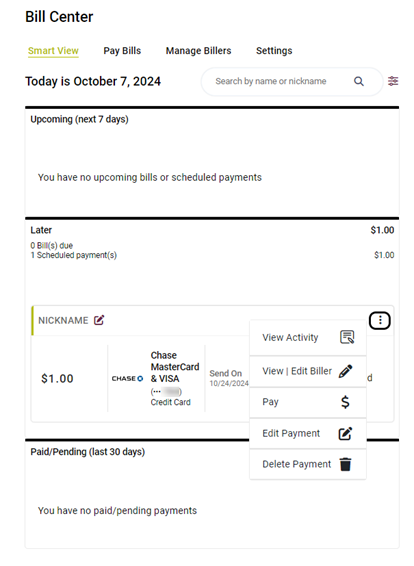
- From Smart View, under Scheduled Payments, find the payment you want to edit or cancel.
- Click the three dots to the right of the payment amount to see all of the payment details.
- Edit any of the fields and click update. OR click Delete Payment in red at the bottom of the payment details to completely cancel the payment.
Business member
- Under Additional Services click on Bill Pay.
- Select a Tax ID.
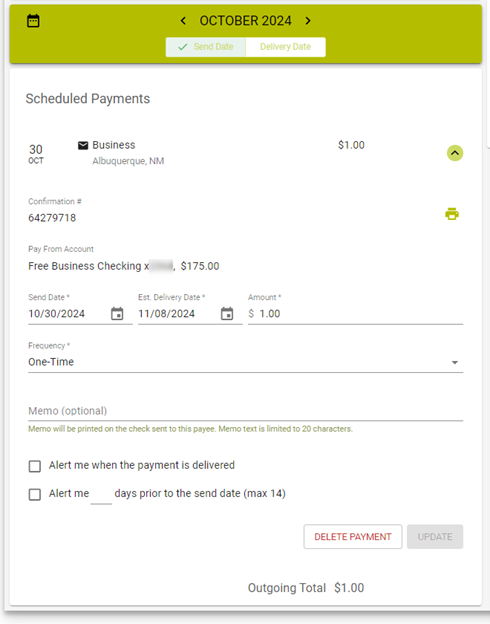
- Under the Scheduled Payments section click the down arrow next to the payment you want to cancel.
- Click on Delete Payment.
- To confirm the deletion, click Yes, Delete this Payment.