How do I add a Biller/Payee in Bill Pay?
Consumer member
- From the Bill Pay dashboard on the right side, select Add Billers or use the Search bar.
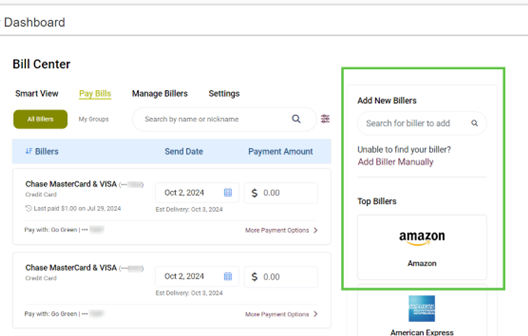
- Type the Biller's name. If the Biller is already in our database, it will appear in the list.
- Select the Biller and click continue. If not, select Add Biller.
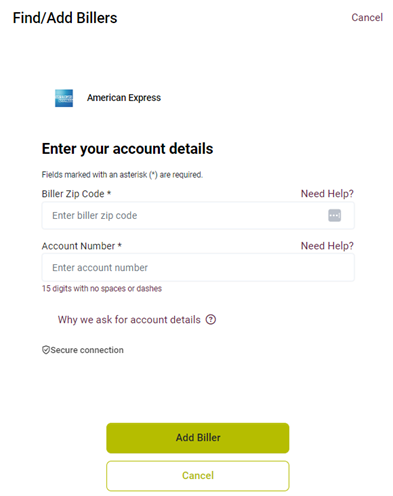
- Add account details by entering the account number found on your bill or statement, confirm the account number, and the biller's zip code. Click continue. A confirmation screen will appear with the Biller's name and the last four digits of the account number, along with the Biller's address. Review your biller’s information for accuracy, then click Add Biller.
Business member
- Navigate to Bill Pay within online and mobile banking.
- Select a Tax ID.
- Click on the Add Payee button.
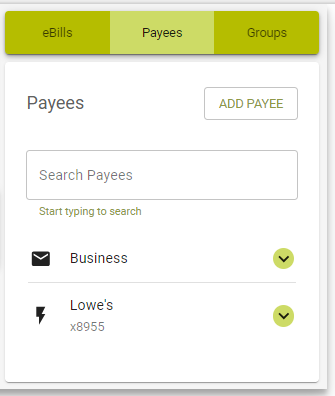
4. Enter a Payee Name and select the payee you want to add and click Continue.
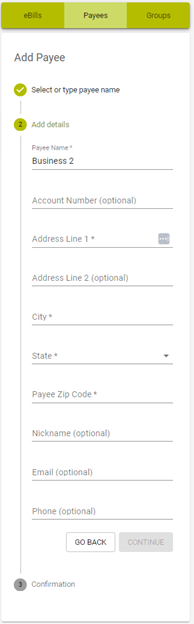
5. Enter the following information for the Payee and click Continue.
- Account Number
- Payee Zip Code
- Nickname (Optional)
- Email (Optional)
- Phone (Optional)
Note: If it is not an electronic payee you will have to enter additional information for the payee such as Address, City and State. This will send a payment via check.
6. The Payee is now created, click continue to end the process.